
- Take the phone number & paste it in the manage user option to find the school {If we cannot find the school using the manage user option then take the school name and find the same}. Once you find the school move ahead.
- Check if the school is active on Nucleus, If active proceed further. If the school is not active kindly educate the parent/student that school is no longer associated with Lead hence they cannot access the App and close the ticket.
- If the school is active, find the student in the Nucleus by clicking on the Student list (You can use Name, Last Name or Student code to find the student). Now check if the student is active on Nucleus, if active proceed further. If not active on the Nucleus , you have to ask the parent to get in touch with the school & you will not make any changes.
- Probe for the phone number which is used by the customer to login
- If using Non - registered number follow the below process
| Step 1 | Educate the parent that they can use only the registered number |
| Step 2 | Validate the caller and then offer them to update the number (Validation - The caller has to provide any of the existing phone number. It could be of Father, Mother or Guardian) |
| Step 3 | After updating the number, check if the customer can log in? (Close looping is important) If the customer can log in, close the call. |
If the Parent cannot clear the validation, we will not update the phone number and we will ask parent to get in touch with the school.
- If using a Registered number follow the below process
| Step 1 | Ask the parent to enter the phone number on the parent App |
| Step 2 | OTP will be sent on the same phone number (If the sim is in the same phone, OTP will be auto-read / If the sim is on a different phone, customer has to enter the OTP manually) |
| Step 3 | If the customer doesn't receive the OTP in few seconds ask the customer to wait and educate him that you will share the OTP with him |
| Step 4 | Open the URL and add the number after otp section (https://nucleus.leadschool.in/admin/otp/9811082564) and share the OTP with the customer. |
If the parent has an frequent issue with OTP suggest the parent to set up the Password.
FAQ -
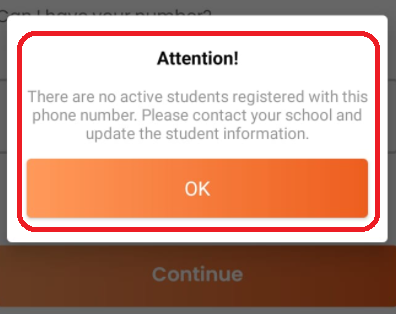
What error the inactive student will get on the App when they try to log in -
The student will not be able to log in. The user will see an error," There are no active students registered with this phone number. Please contact your school and update the student information."
What error the student will face is he has been marked Fees unpaid - The student will be able to log in but he will not see any goals of the day. He will see a message on the goal's of the day page - No Goals for this day!.