
Smart Delete Principle:
Reason for Smart Delete - So that tab functions smoothly & the user experience improves
How the smart delete works -
The app takes permission to access the memory card- Note - This is enabled for all schools.
How the mechanism works -
- When the memory card storage becomes 95% full, smart delete kicks in (This permission has to be given)
- We will smart delete the files not mapped to the logged-in user (E.g - Teacher is not assigned Grade 2, so all resources for Grade 2 will be deleted)
- Let's understand this with an example
Below are the examples to understand Delete Principle:
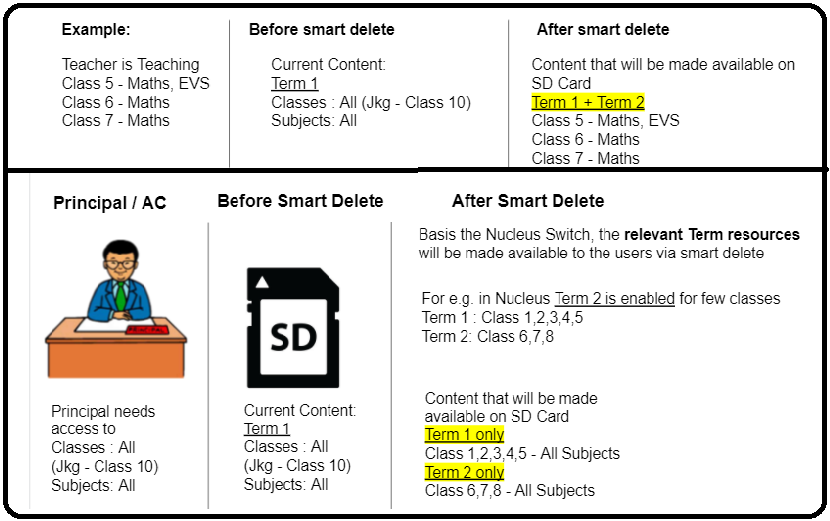
Note: If multiple teachers are sharing a tab, they could use the AC / Principal Login and share the tab.
Permission flow
How to give access - Remove the memory card and reinsert it in the Tab and then follow the below steps.
Android 9 & below -
Step 1 - Click on the menu to select the SD card
Step 2 - Select SD card from the menu
Step 3 - Click on permission at the bottom of the page. It could say select or use this folder
Android 10 -
Step 1 - Click on the menu to select the SD card
Step 2 - Select SD card from the menu
Step 3 - Select, "Allow access to Sandisk SD card" at the bottom
Step 4 - Select Allow on the permission pop up
Note - At times to accommodate the current term resources, the smart delete feature would delete previous term resources. So if we access the previous term, and if resources are not opening we may have to connect to the NAS box or internet to download the resources.
Smart Delete not working - Troubleshooting steps

- Please click on the OK button and go back to the Teach page.
- Check if the SD card is getting detected and also it should not be corrupted.(Settings --> Storage)
- Probe from when this issue started, as it can take up to 15-20 minutes for the teacher app to identify the older/unwanted resources and delete them from the SD (If it has been more than 20 mins that then move to next step and if not ask the teacher wait for 20 mins).
- Kindly do One-Click update, if issue is still not resolved kindly move to the next step.
- Re-start the tab, if this resolves the issue then close the ticket. if not then move it to the next step.
- If still the issue is not resolved kindly escalate it to Tech Team (Never format the card).